Construction & Engineering · Updated October 6, 2026
Can I draft and edit CAD geometry inside a PDF editor?
Reviewed for technical accuracy by licensed professional engineers.
Short answer
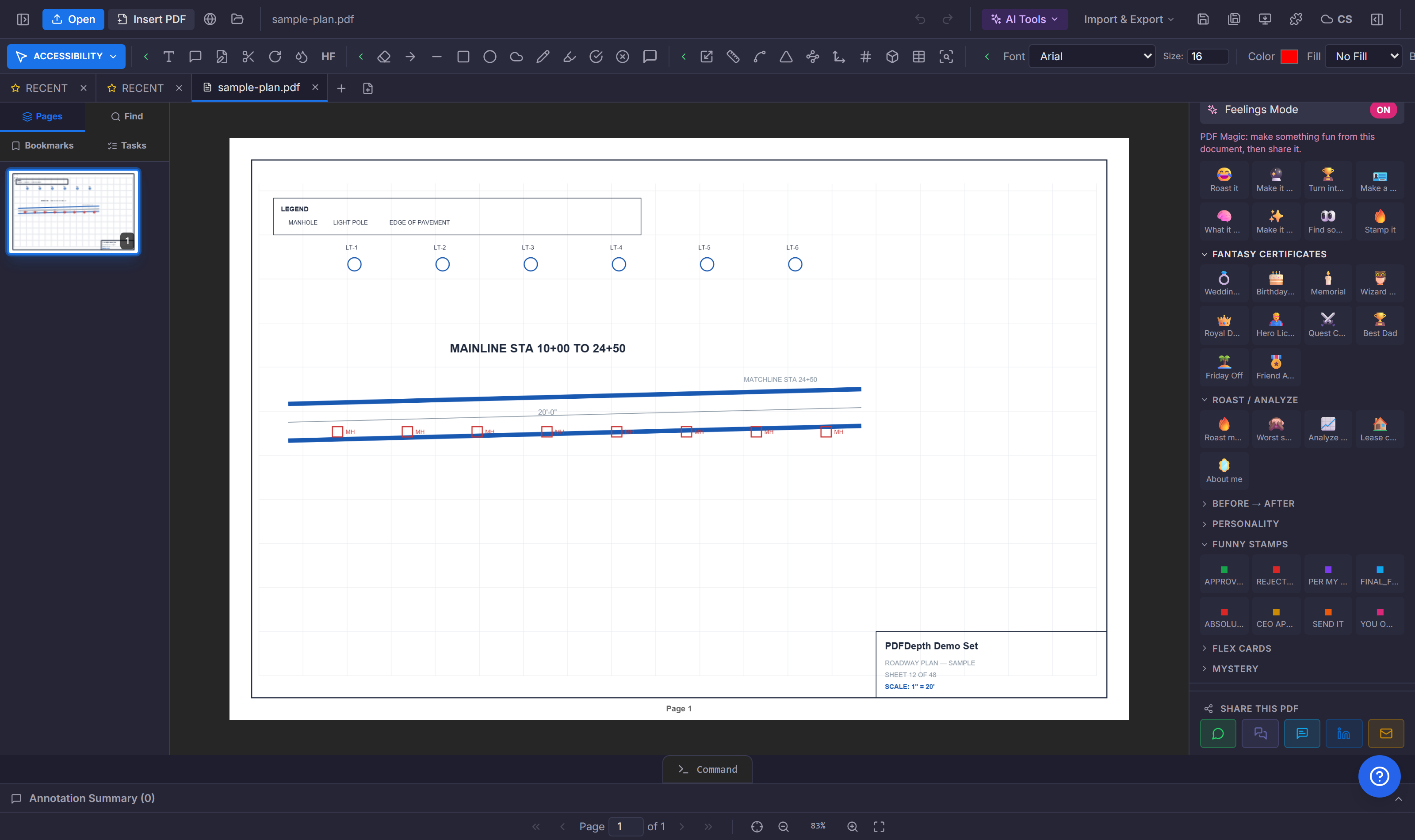
Press Ctrl+9 (or the Command button at the bottom of the workspace) and a CAD command line opens: type commands like LINE, PLINE, OFFSET, TRIM, or HATCH with the usual aliases, pick points on the sheet, and the geometry lands as editable annotations — all inside the PDF editor, in the browser, with no install.
A command line, not a toolbar hunt
The command line docks at the bottom of the workspace and works the way CAD operators expect: type a command or its alias — L for LINE, PL for PLINE, O for OFFSET, TR for TRIM — and follow the prompts. Autocomplete suggests commands as you type, multi-step commands collect points on the canvas with a rubber-band preview, Enter advances a step, and Esc cancels cleanly.
- Draw — LINE, PLINE, RECTANG, CIRCLE, ARC, ELLIPSE, HATCH, FREEHAND.
- Modify — MOVE, COPY, OFFSET, ROTATE, SCALE, TRIM, EXTEND, FILLET, JOIN, EXPLODE, ERASE, plus FENCE_TRIM and FENCE_EXTEND for cutting many objects with one line.
- Annotate — MTEXT, DDEDIT, DIMLINEAR, DIMALIGNED, LEADER, CLOUD, ARROW, PIN, HIGHLIGHT, COUNT, CALIBRATE.
- Navigate and manage — ZOOM, PAN, REGEN, UNDO/REDO, LAYER, COLOR, UNITS, PURGE, OVERKILL for duplicate cleanup.
The output is real, editable geometry
Commands do not burn pixels — they create the same annotation objects the markup tools produce. A polyline drawn with PLINE can be selected, moved, restyled, rotated with ROTATE, exploded with EXPLODE, or undone like anything else on the sheet. DIST and AREA report distances and surface areas, and DIMLINEAR/DIMALIGNED lay dimension linework on the page.
Snapping onto the drawing itself
OSNAP (F3) snaps your click to the PDF’s own vector linework — the closest point on the nearest segment within a zoom-scaled tolerance — so new geometry lands on real endpoints and edges instead of near-misses. Smart Ortho Snap straightens near-horizontal and near-vertical segments automatically while you draw.
Vectorizing the sheet and moving geometry out
CONVERTTOCAD (alias CTC or VECTORIZE) extracts the page’s native PDF linework, merges the raw segments into clean polylines in a background worker, and stores the result as a CAD layer you can select, trim, and erase like markup. Going the other way, the DXF command exports the current page’s geometry to a .dxf — imported linework on a PDF_IMPORT layer, your edits on USER_EDITS — and IMPORT:DWG converts a native DWG or DXF through the conversion service and opens it as its own tab.
The AI operator and the batch namespaces
The AI command takes a plain-language instruction — "move the selected rectangles 20 pixels right" — sends the selected geometry to the model, validates each returned edit, and applies the moves, deletions, and duplicates it proposes. Creating brand-new shapes from a sentence is the one thing it does not do yet; it edits geometry you point it at. The same line also runs set-wide jobs (FOLDER:SCALE_SYNC, FOLDER:SLIPSHEET, FOLDER:TAKEOFF_REPORT) and server-side document ops (CLOUD:OCR, CLOUD:TO-WORD), so the whole workspace is scriptable from one prompt.
Doing it in PDFDepth
Ctrl+9 opens the command line; type ? for the in-app command list. Draw with aliases, snap with F3, ortho with the Snaps toggle, then DXF the page out when the geometry needs to travel. Everything runs in the tab — the same session on a site tablet as on the office machine.
References
Everything in this article runs in the live PDFDepth workspace — the same app the workflows above were verified against.
Key takeaways
- A CAD-style command line (Ctrl+9) drives draw, modify, annotate, and measure commands with familiar aliases.
- Command output is editable annotation geometry — selectable, movable, restylable, undoable.
- OSNAP snaps to the sheet’s own vectors; CONVERTTOCAD vectorizes native PDF linework into a CAD layer.
- DXF exports the page; IMPORT:DWG brings native CAD files in; the AI operator edits geometry from plain language.
Related questions
Real objects — the same annotation types the markup tools create, so they select, move, restyle, and export like any other geometry on the sheet.
Do it in PDFDepth
In the app: Command line — terminal button at the bottom of the workspace (Ctrl+9)
Try it free — no signup, no upload
Related articles
Put it into practice
Everything above runs inside the PDFDepth workspace — free for 14 days, no credit card.
Start for Free