Inside the Workspace · Updated September 26, 2026
What does Inspection Mode do in PDFDepth?
Short answer
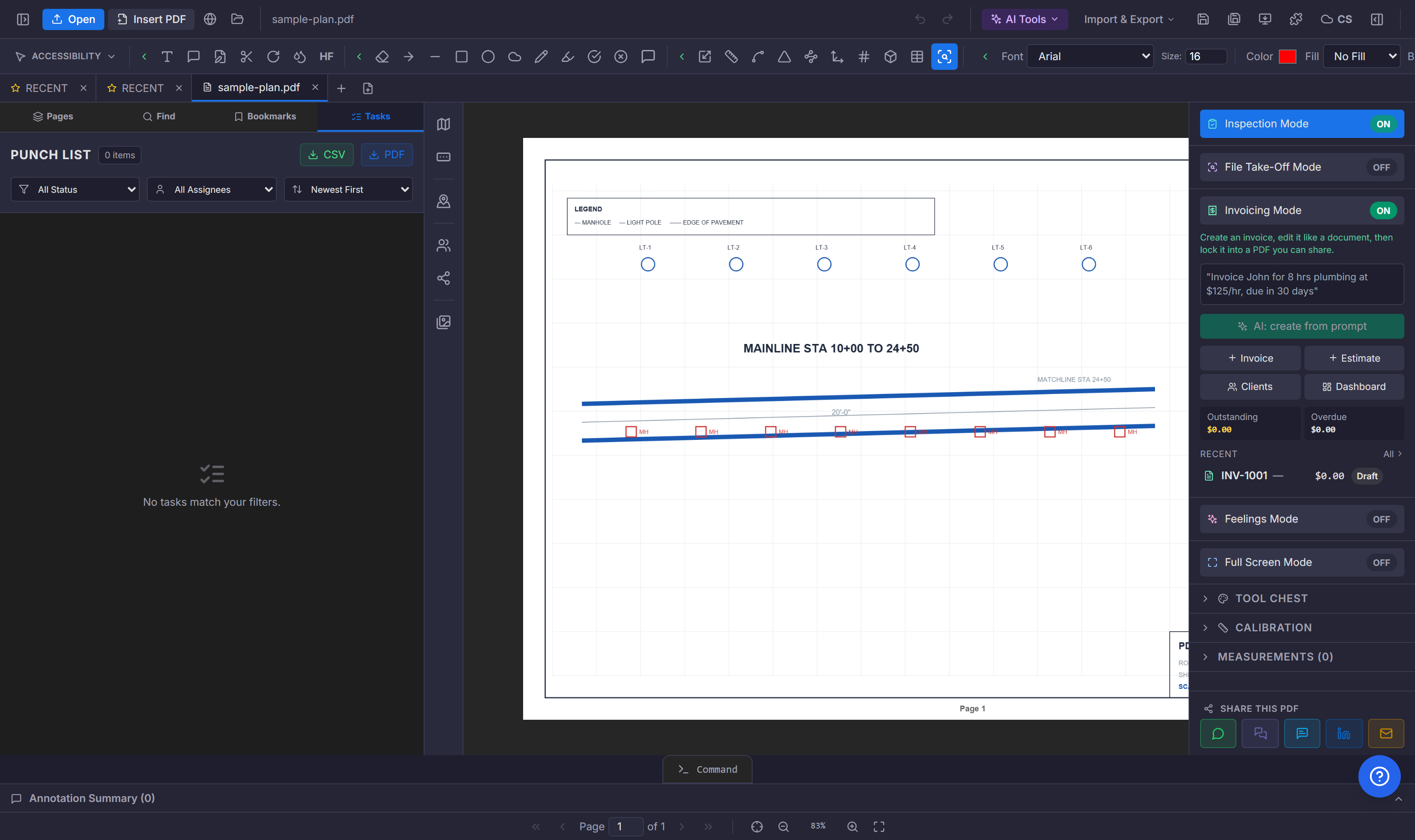
Inspection Mode is a right-panel toggle that swaps the workspace into punch-list mode. You drop task pins directly on the plan, each pin becomes a tracked item with a status and assignee, and the whole list exports to CSV or a formatted PDF report.
What it replaces
The classic field workflow is a paper set, a clipboard, and a spreadsheet someone re-typed later. Inspection Mode keeps the whole loop on the drawing: every deficiency, note, or follow-up is a pin placed exactly where the issue lives, not a row in a detached spreadsheet describing "somewhere near grid line C".
How a walkthrough runs
- Open the plan set and toggle Inspection Mode on in the right panel.
- Drop a pin where the issue is — each pin becomes a task with a title, status, and assignee.
- Filter the punch list by status or assignee, or sort newest-first as items come in.
- Export the filtered list to CSV for the tracker, or to PDF as a formatted report for the owner.
Where the data lives
Pins are stored as annotations on the document, so they travel with the file and render on the sheet wherever it is reopened. The task list panel shows the same items as a filterable table — two views of one set of issues.
Key takeaways
- Toggle Inspection Mode in the right panel — it turns the document into a punch list.
- Every pin on the sheet is a tracked task with status and assignee.
- Export to CSV for tracking or PDF for a formatted report.
Related questions
Pins are stored as annotations, so the original page content is untouched — the tasks ride along as a layer on the document.
Do it in PDFDepth
In the app: Right panel → Inspection Mode
Try it free — no signup, no upload
Related articles
Put it into practice
Everything above runs inside the PDFDepth workspace — free for 14 days, no credit card.
Start for Free