Inside the Workspace · Updated September 26, 2026
What is File Take-Off Mode in PDFDepth?
Short answer
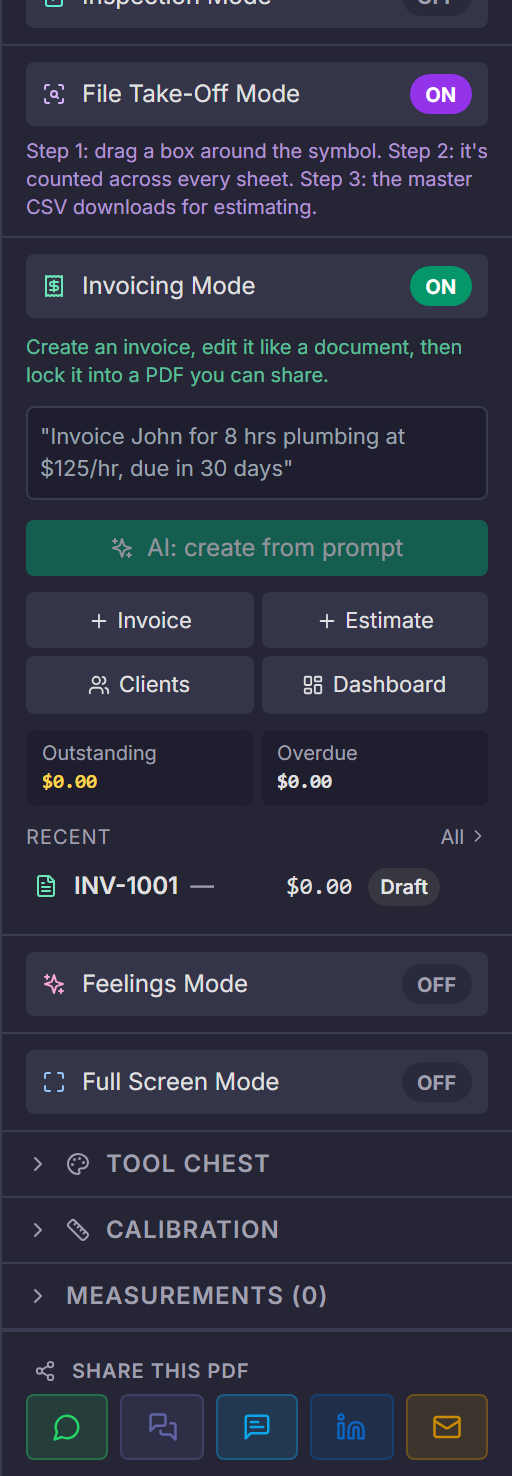
File Take-Off Mode turns a single selection into a whole-set count: you drag a box around one instance of a symbol — a light pole, a manhole, a fixture — and it is detected and counted across every sheet in the file, then exported as a master CSV.
The problem it solves
Counting symbols is the slowest, most error-prone part of a takeoff — the same fixture repeated across forty sheets, each one tallied by eye. Missing a sheet or double-counting a symbol lands directly in the bid. File Take-Off Mode makes the count systematic instead of manual.
The three-step flow
- Toggle File Take-Off Mode in the right panel — it arms the auto-count tool.
- Drag a box around one instance of the symbol on any sheet.
- The symbol is counted across every sheet automatically, and the master CSV downloads for estimating.
What you get
The master CSV aggregates every detected count per sheet, ready to drop into a spreadsheet or estimating package. Because the detection is driven by your selection, it works on whatever symbol set the plan uses — there is no fixed library of shapes it must match.
Key takeaways
- Box one symbol — it is counted on every sheet in the set.
- The result is a master CSV, not an annotation you have to re-tally.
- Works on any symbol because detection is driven by your selection.
Related questions
Detection is based on the rendered page, so it works on scans as well as vector sheets — run OCR first if the sheet is very low quality.
Do it in PDFDepth
In the app: Right panel → File Take-Off Mode
Try it free — no signup, no upload
Related articles
Put it into practice
Everything above runs inside the PDFDepth workspace — free for 14 days, no credit card.
Start for Free