Inside the Workspace · Updated September 26, 2026
What are Full Screen Mode and the Share panel in PDFDepth?
Short answer
Full Screen Mode is a right-panel toggle that maximizes the document for presentations and review. The Share panel beneath it sends the open document — as the full PDF, a page range, or a snapshot of the current page — through WhatsApp, Teams, SMS, LinkedIn, or email, entirely from your device with no cloud upload.
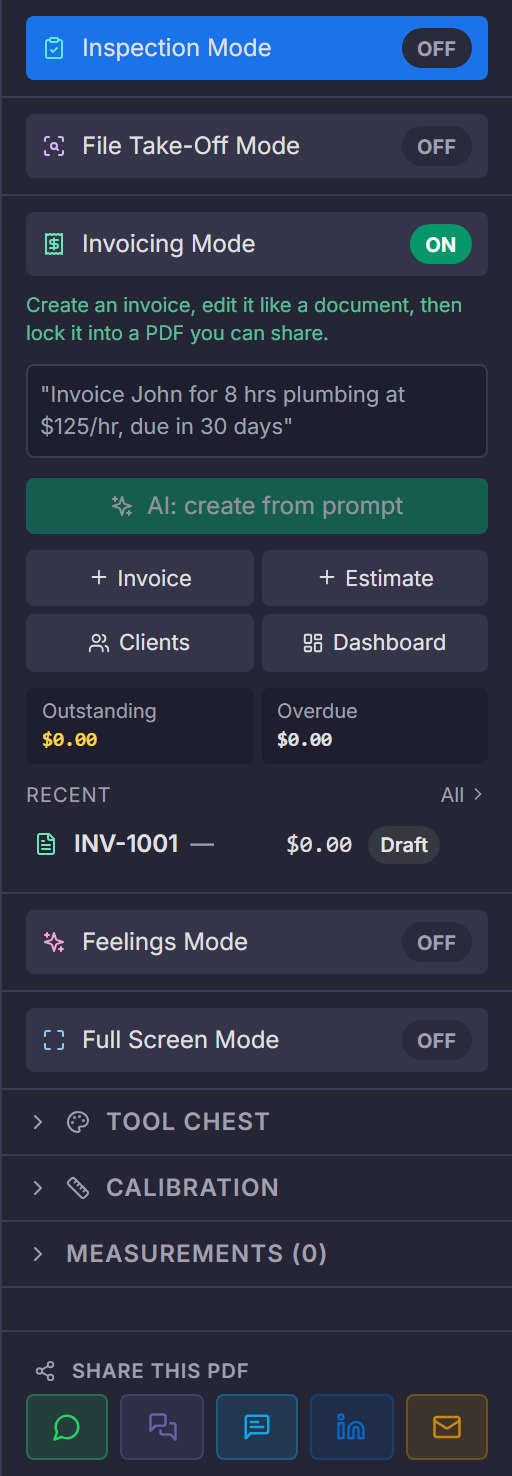
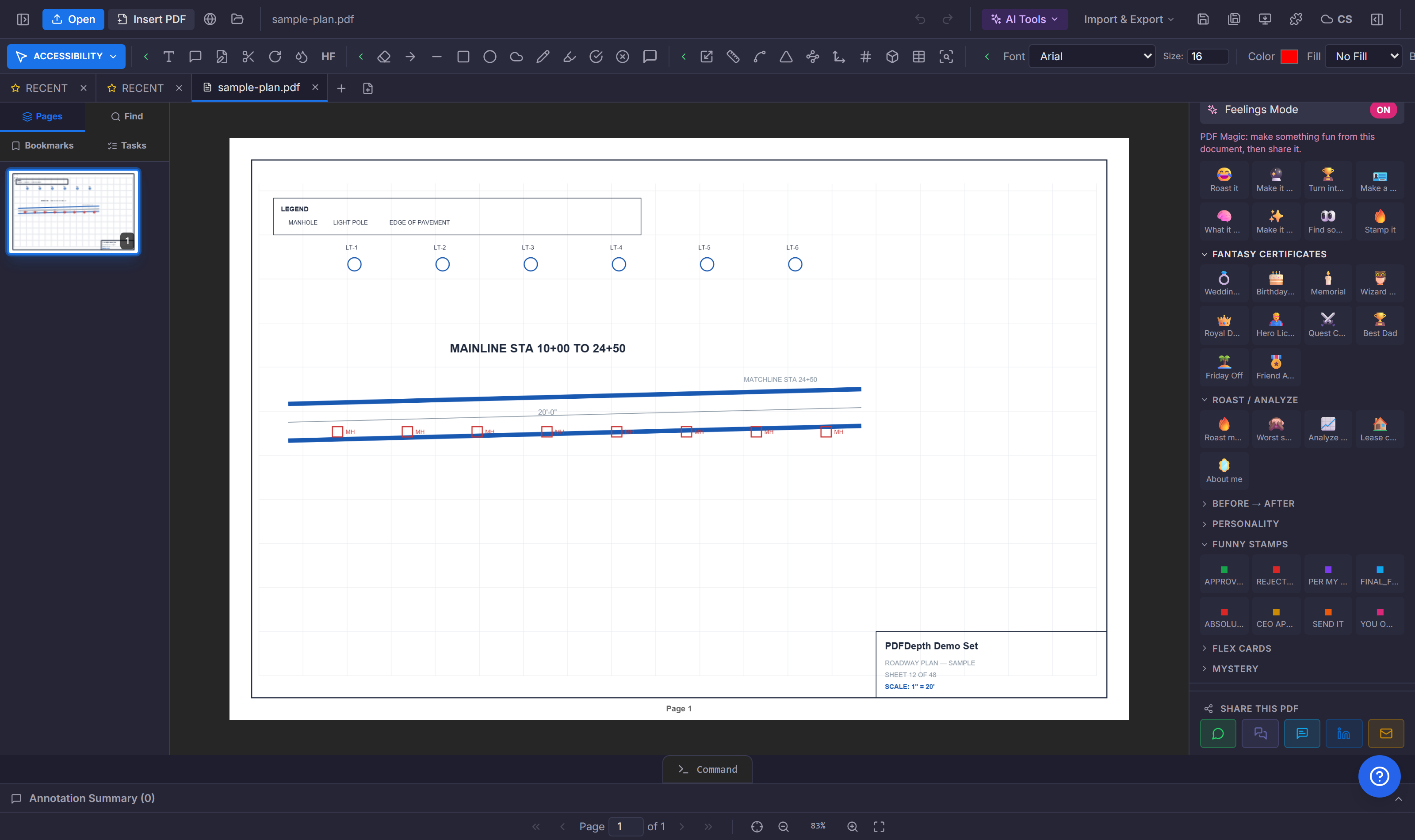
Full Screen Mode
One toggle flips the workspace to fullscreen — the equivalent of pressing F11 — for plan-room reviews, screen shares, and focused markup sessions. Toggle it off (or hit Esc) to bring the chrome back.
Share what is open — instantly
The Share panel at the bottom of the right sidebar sends the document you are looking at without a "preparing to upload" step. On a clean document it shares the original file bytes directly; if you have annotations, only the marked pages are flattened — the rest of the set is copied through untouched, so sharing stays fast even on large plan sets.
Choose the channel, then the scope: the whole PDF, a page range like "1-3, 7", or a PNG of the current page with your markups drawn in. On mobile and Windows the file goes straight into the system share sheet; on other desktops the file downloads and the channel opens with the caption ready — attach and send.
Key takeaways
- Full Screen Mode is one toggle — a clean presentation view for reviews.
- Share sends the open document to WhatsApp, Teams, SMS, LinkedIn, or email.
- Sharing is device-local: no upload, and only marked pages are re-rendered.
Related questions
No. The file is assembled on your device and handed to the channel directly — or downloaded for you to attach — with no cloud step.
Do it in PDFDepth
In the app: Right panel → Full Screen Mode · Share this PDF
Try it free — no signup, no upload
Related articles
Put it into practice
Everything above runs inside the PDFDepth workspace — free for 14 days, no credit card.
Start for Free