Construction & Engineering · Updated October 6, 2026
How do I slip-sheet a revised drawing and see what changed?
Reviewed for technical accuracy by licensed professional engineers.
Short answer
In PDFDepth, open the previous revision and run the Slipsheet Compare folder command (FOLDER:SLIPSHEET in the command line): you pick the new PDF, a compare engine locates the regions that changed, dashed diff boxes are drawn over those spots on your sheet, and the new revision opens in a synced split view beside the old one.
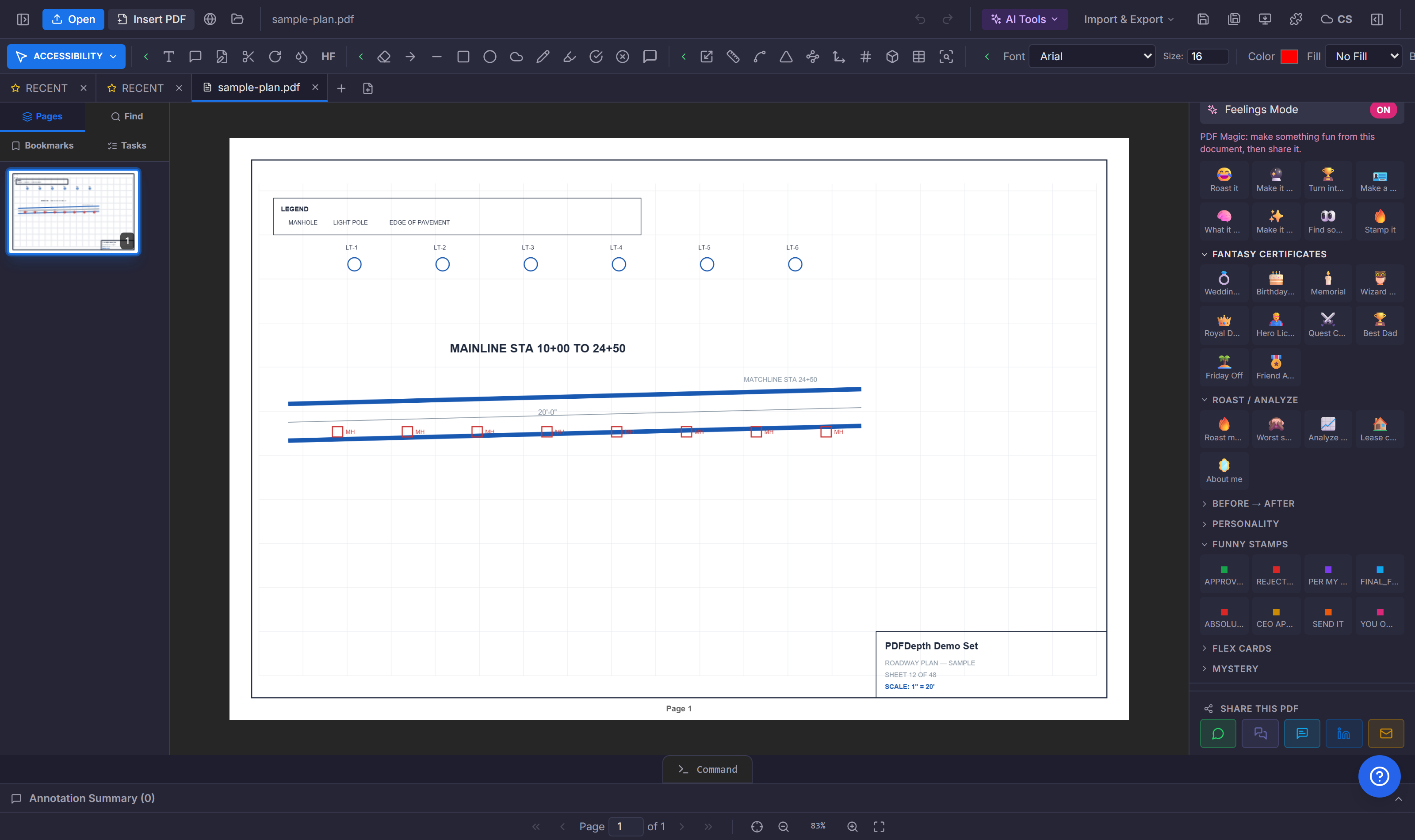
The paper workflow, digitized
Slip-sheeting is the oldest revision check in construction: lay the new sheet over the old and look for what moved. Digitally, the compare runs the same idea at pixel level — the two files go to the compare engine, which returns the bounding boxes where the sheets differ.
How a compare runs
- Open the old revision — the sheet with your existing markups stays exactly as it is.
- Run FOLDER:SLIPSHEET in the command line and pick the new PDF when prompted.
- The engine returns the changed regions; dashed revision boxes appear over those areas on the sheet you are reviewing.
- The new revision opens in the right pane of a synced split — pan or zoom one side and both move together.
- The report states the count of changed regions found.
Where it fits in a revision chain
Diff boxes tell you where to look; the version trail tells you what you approved. Save a named version snapshot before and after each revision exchange — the snapshot stores the PDF plus every annotation, measurement, and calibration — and the chain stays auditable: view any revision in its own tab, restore it, or mark it approved.
Honest limits
The compare sends both files to the backend for the diff — it is one of the operations that leaves the local workspace by design. It compares the current page pairing, so run it per sheet pair in a set. And the boxes mark regions that changed, not what the change means — a shifted wall and a shifted title block both box; the reviewer still reads the difference.
Doing it in PDFDepth
Ctrl+9 opens the command line; type FOLDER:SLIPSHEET with the old revision open. For a whole-set version record, Right panel → Collaborate Mode → Version History saves named snapshots along the way.
References
Everything in this article runs in the live PDFDepth workspace — the same app the workflows above were verified against.
Key takeaways
- Slipsheet Compare pairs an open old revision with a new PDF you pick.
- Changed regions come back as dashed diff boxes on the sheet; the new file opens in a synced split.
- Named version snapshots before and after each revision keep the chain auditable.
- Boxes locate change; the reviewer still judges what changed.
Related questions
No — the compare reads your open revision and a new file you pick; annotations on the old sheet are untouched, and the new revision opens as its own tab in the split.
Do it in PDFDepth
In the app: Command line → FOLDER:SLIPSHEET
Try it free — no signup, no upload
Related articles
Put it into practice
Everything above runs inside the PDFDepth workspace — free for 14 days, no credit card.
Start for Free