Inside the Workspace · Updated October 6, 2026
How do I save and restore PDF versions in PDFDepth?
Short answer
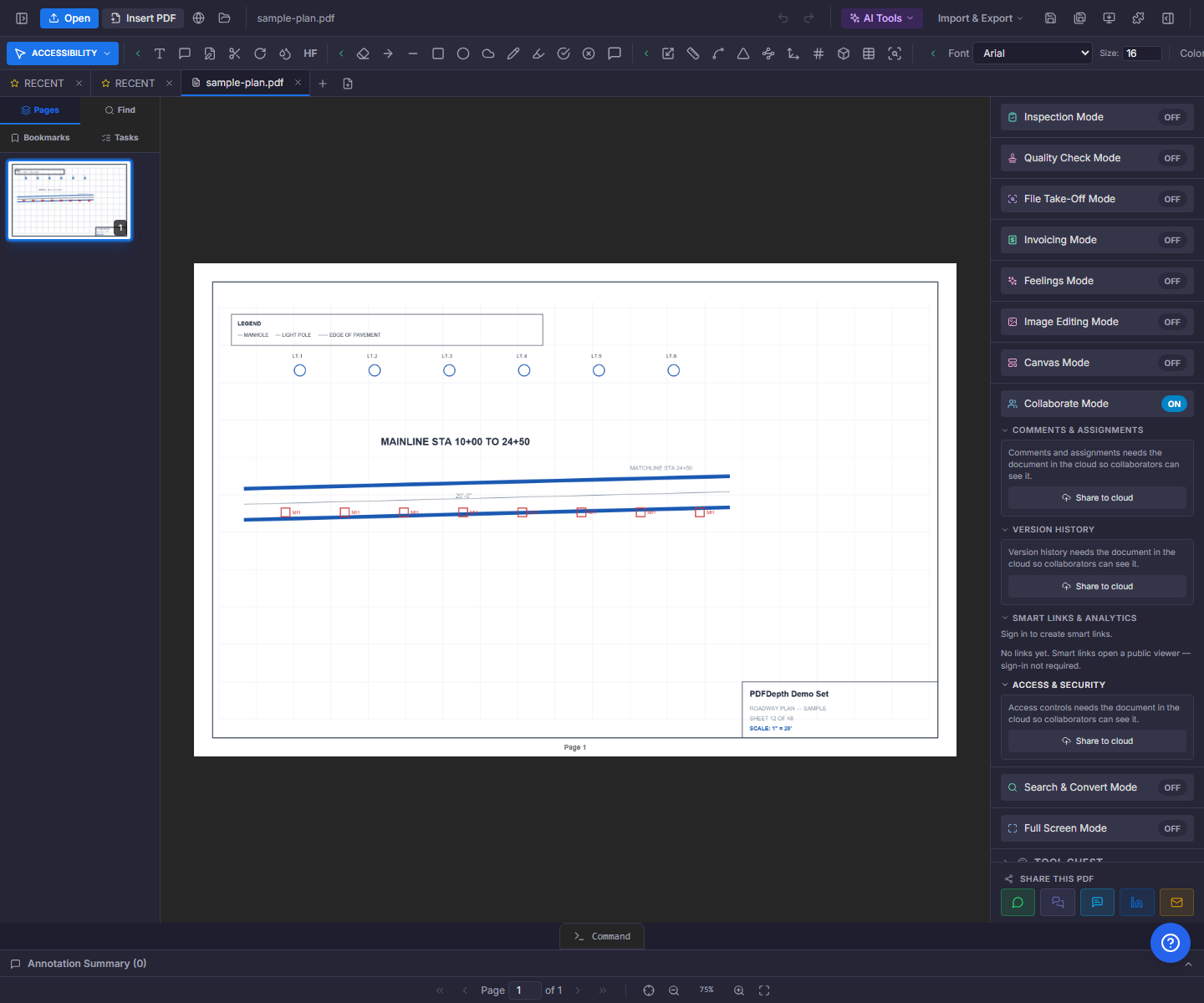
On a cloud-shared document, Collaborate Mode → Version History saves named snapshots: the current PDF bytes plus a snapshot of all annotations, measurements, calibrations, and form fields. Each version can be opened in a new tab for comparison, restored into the live document after a confirmation, or marked approved by the owner.
What a snapshot contains
A version is two artifacts stored together: the document’s PDF bytes, and a JSON snapshot of the workspace — annotations, measurements, calibrations, and form fields. The list shows each version’s label, who saved it, when, and how many annotations it carried, plus an "approved" badge when the owner has signed off on it.
The daily workflow
- Save version snapshot — name it ("Rev 2 — addendum issued") and the current state freezes.
- View — opens the version’s PDF and markups in a new tab, ready for side-by-side or revision-compare work.
- Restore — replaces the live PDF and all markups with the snapshot, after a confirmation that warns you the current state is only recoverable if you saved it as a version first.
- Approve — an owner-only badge marking a version as the accepted one.
How it connects to slip-sheeting
Plan-set versioning pairs naturally with the revision-compare workflow: open the old revision, run Slipsheet Compare (FOLDER:SLIPSHEET in the command line), pick the new PDF, and the backend diffs the sheets — drawing revision-cloud boxes over the changes in a split view. Saving a named version at each milestone is what keeps that chain auditable; viewing a version in its own tab is what feeds the compare.
Permissions and honest limits
Saving and restoring need the owner or editor role; approving is owner-only. On a local document the section shows a "Share to cloud" prompt — snapshots live with the cloud doc, not the file on disk. And restore really does replace: the dialog says so plainly, because the overwritten state survives only if you snapshotted it first.
Everything in this article runs in the live PDFDepth workspace — the same app the workflows above were verified against.
Key takeaways
- A version = the PDF bytes plus a snapshot of every annotation, measurement, calibration, and form field.
- View opens a version in a new tab — the practical input for revision compare.
- Restore replaces the live document after confirmation; save the current state first.
- Save/restore need owner or editor; the approve badge is owner-only.
Related questions
No — versions are deliberate, named snapshots you create at milestones. The document itself syncs continuously once shared; versions are the frozen checkpoints.
Do it in PDFDepth
In the app: Right panel → Collaborate Mode → Version History
Try it free — no signup, no upload
Related articles
Put it into practice
Everything above runs inside the PDFDepth workspace — free for 14 days, no credit card.
Start for Free