Inside the Workspace · Updated October 6, 2026
How do I share a PDF as a tracked link with view analytics?
Short answer
Smart Links (Right panel → Collaborate Mode → Smart Links & Analytics) create a public /l/ link to a copy of the open PDF. Recipients open a read-only viewer — no account needed — subject to the password, expiry, email-gate, and download/print settings you chose, while the link’s analytics report views, unique viewers, time, per-page seconds, downloads, and prints.
Creating a link
Sign in, open the PDF, hit "New smart link". Give it a label, then the controls: an optional password (stored hashed, never as plaintext), an expiry (24 hours, 7 days, 30 days, or a custom date), a require-email gate, allow-download and allow-print switches, and an "Include markups" toggle that flattens your annotations into the shared copy — off sends the raw file.
The link is a standalone upload, which makes it handy in two directions: it works even when the document itself is not shared to the cloud, and it is frozen — the link serves the copy you uploaded, not your live document.
What the recipient sees
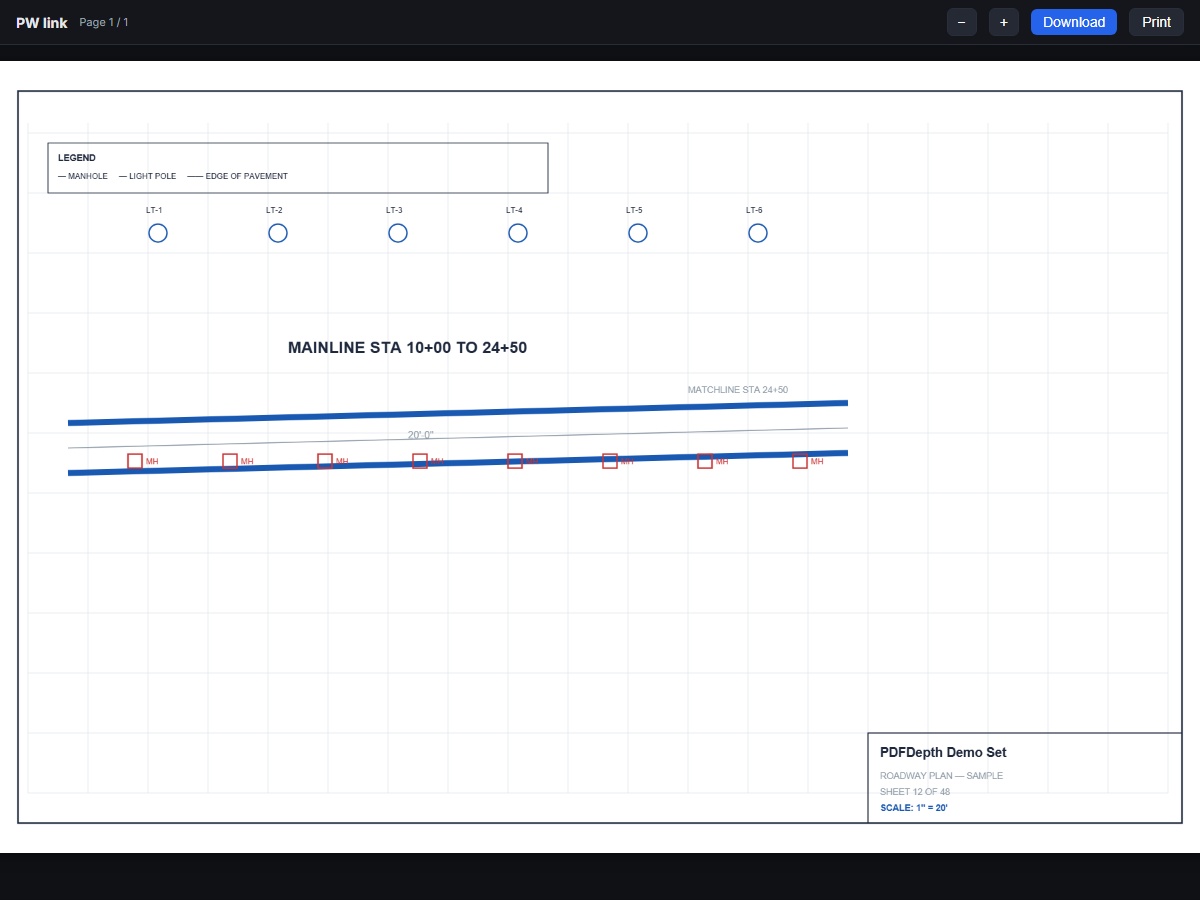
A clean read-only viewer: pages rendered as images, zoom controls, a page counter, and Download/Print buttons only when you allowed them. The email gate asks for an address (used for analytics), the password gate rejects wrong answers, and expired or revoked links get a clear "unavailable" screen instead of the document.
Honest limit: turning download and print off hides the buttons and blocks Ctrl+P/Ctrl+S, and the print stylesheet blanks the output — but anything rendered on a screen can be captured. Treat the switches as a deterrent, not a guarantee, and pair them with a watermark when the content is sensitive.
The analytics
The analytics dialog reports views, unique viewers, average and total viewing time, downloads, prints, and last-viewed. A per-page chart shows seconds spent on each page — the part that answers "did they actually read page 4?" — and a viewer table lists each visit by email or anonymous visitor id with its date, total time, and page count. Each view record also captures the referrer and the viewer’s user agent.
Timing is heartbeat-based: the viewer reports its most-visible page every 15 seconds, which is what builds the per-page numbers.
Managing, editing, revoking
The panel lists every link with a status chip — active, expired, revoked — and a running view count. Edit reopens the settings (rename it, set or remove the password, move the expiry, flip the gates); Revoke kills the link outright. On the security side, a viewer session token lasts two hours, and ten wrong passwords inside fifteen minutes temporarily locks the link with a "too many attempts" screen.
Everything in this article runs in the live PDFDepth workspace — the same app the workflows above were verified against.
Key takeaways
- A smart link is a public /l/ URL to an uploaded copy — recipients need no account, and the doc itself can stay unshared.
- Controls: label, password, expiry, email gate, allow download, allow print, include-markups.
- Analytics cover views, unique viewers, time, per-page seconds, downloads, and prints.
- Download/print blocking deters casual copying but cannot stop screenshots — watermark sensitive pages.
Related questions
No — the link serves the copy uploaded at creation. Make the edits, then create a fresh link for the new revision.
Do it in PDFDepth
In the app: Right panel → Collaborate Mode → Smart Links & Analytics
Try it free — no signup, no upload
Related articles
Put it into practice
Everything above runs inside the PDFDepth workspace — free for 14 days, no credit card.
Start for Free