Construction & Engineering · Updated October 12, 2026
What is QC Mode in PDFDepth?
Reviewed for technical accuracy by licensed professional engineers.
Short answer
QC Mode (Quality Check Mode) is a right-panel toggle that drops a multi-row QC stamp on page 1 and opens the share dialog so reviewers can join by link. Five sequential steps — Origination, Checked, Concurrence, Changes Made, Changes Verified — are signed off with initials and a date, and each step restricts which ink colors new markups may use.
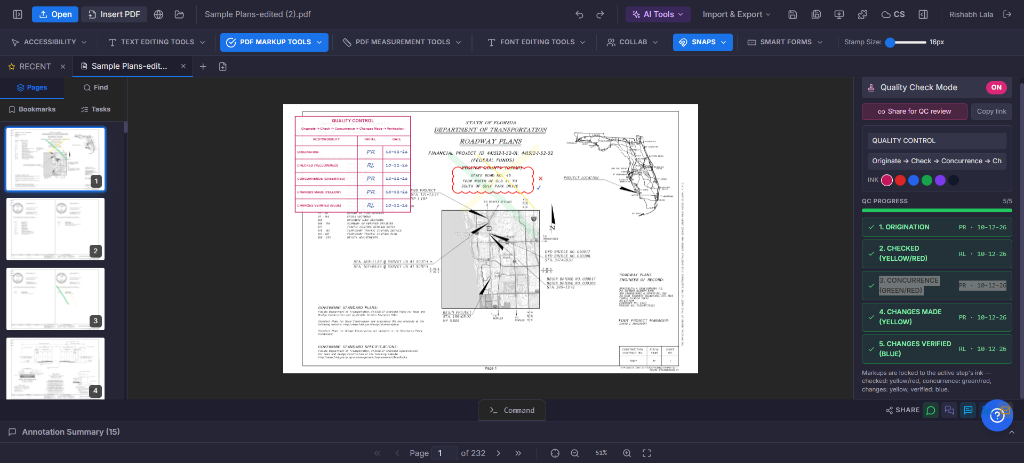
The review chain on a stamp
The stamp models the plan-review table used on DOT-style plan sets: a company name, a subtitle naming the loop, and one row per step. Steps run in order — a row is locked until the step before it is signed off, and the panel shows progress as it fills in.
- Origination — the originator assembles the plans; any markup color allowed.
- Checked — first-pass review: yellow marks correct work, red flags errors and questions.
- Concurrence — a second reviewer agrees in green or logs disagreements in red.
- Changes Made — the originator highlights each agreed change in yellow.
- Changes Verified — a different person blue-checks that each change was actually made.
Sharing and assigning the review
Turning the mode on the first time creates the stamp and opens the share dialog, so the set is uploaded and reviewers join through the ?doc= collaboration link. Because the stamp is a synced annotation, initials and dates fill in live for everyone looking at the document — there is no "send me your copy" step.
Each step can carry an assignee (initials, up to four characters). Only the assignee — or the stamp’s owner — can sign that step off. The stamp itself is restyled from the panel: company name, subtitle, and a choice of ink colors.
Color discipline is enforced, not suggested
While a step is active, new markups are coerced into that step’s ink — highlights, clouds, lines, text notes, and pins included. Check and X stamps carry protocol meaning, so a check always lands in the step’s "agreement" ink and an X in its "disagreement" ink even if you picked another color. Drawing a red cloud during Concurrence is not possible by accident.
What it is — and is not
The stamp is an annotation on page 1: it travels with the document and flattens into the output on export like any other markup. A sign-off writes initials and a date onto the stamp row — it is a review record, not a cryptographic signature. For the drawing-by-drawing content checks, pair it with AI Plan Review, which flags candidate issues with sheet citations while QC Mode tracks who verified what.
Doing it in PDFDepth
Right panel → Quality Check Mode. The first toggle drops the stamp and opens sharing; "Share for QC review" re-shows the link later, and "Copy link" puts it on the clipboard. Set the company name and ink, assign each step, and have each reviewer sign off in turn.
References
Everything in this article runs in the live PDFDepth workspace — the same app the workflows above were verified against.
Key takeaways
- Five sequential steps — Origination, Checked, Concurrence, Changes Made, Changes Verified — each signed with initials and a date.
- Only the step’s assignee or the stamp owner can sign a step off; later rows stay locked until their turn.
- Markup ink is forced into the active step’s color protocol — the palette itself tells reviewers which phase they are in.
- The stamp is a synced annotation: collaborators see sign-offs appear live on page 1.
Related questions
The stamp and sign-offs work on a local document, but the multi-reviewer chain only reaches other people once the set is shared through the collaboration link.
Do it in PDFDepth
In the app: Right panel → Quality Check Mode
Try it free — no signup, no upload
Related articles
Put it into practice
Everything above runs inside the PDFDepth workspace — free for 14 days, no credit card.
Start for Free