Inside the Workspace · Updated October 12, 2026
What do the modes in PDFDepth's right panel actually do?
Short answer
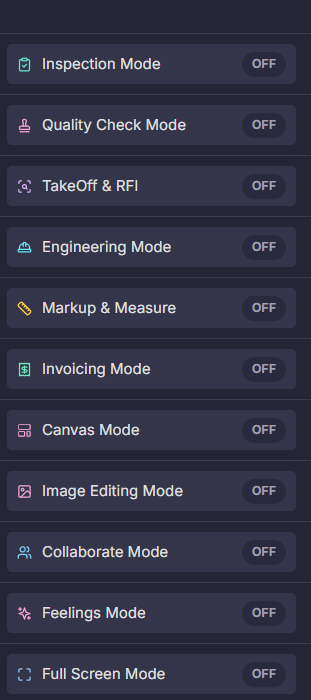
The right panel switches the workspace between eleven focused modes — each one reconfigures the toolbars, panels, and AI for a different kind of work on the same document. Engineers get TakeOff & RFI and Engineering Mode; reviewers get Inspection and Quality Check; anyone gets Markup & Measure; a small business gets Invoicing; a designer gets Canvas and Image Editing; a team gets Collaborate; and everyone gets Feelings and Full Screen. One PDF, one place — the mode decides what the workspace is trying to be.
Why modes instead of more toolbars
A PDF workspace that tries to be an editor, a takeoff tool, a design canvas, and a review platform at once would bury every user under the same hundred buttons. Modes are the alternative: the workspace keeps one document and swaps its whole working posture — the right tools surface, the rest get out of the way.
That's also the honest answer to "why not just use Canva/remove.bg/a takeoff app?" — because those are eleven different websites, eleven uploads, eleven subscriptions, and a file that bounces between them. Here the document stays put; the mode around it changes.
For construction, engineering & architecture
- TakeOff & RFI — the guided takeoff wizard: pick the scope, box a symbol once, and it counts across the sheets you selected, extracts dimensions, measures lengths, and builds runs you can export to Excel. RFI drafting lives beside the takeoff because that's where the questions surface.
- Engineering Mode — the sheet explainer. It identifies the discipline from the title block, tells you in plain language what that discipline does, and drops temporary callouts on the elements. A non-MEP reader can make sense of an MEP sheet.
- Markup & Measure — calibrated distance, area, volume, counts, angles; redlines, clouds, callouts. The daily-driver mode for anyone touching drawings.
- Inspection Mode — a structured pass over the document with the task list open: findings pinned where they belong, reviewed systematically rather than by memory.
- Quality Check Mode — the reviewer's pass before a set goes out: check the things that get people sued, one by one.
For business & everyday work
- Invoicing Mode — describe the invoice in one sentence and AI drafts it: clients, line items, payments, overdue balances, locked into a branded PDF. The solo contractor's accounting department.
- Collaborate Mode — comments, roles, and tracked sharing on the same document. The version of "reply-all with the PDF attached" that doesn't lose the thread.
- Feelings Mode — reads the document's tone: how a letter, proposal, or email-draft will land before you send it.
- Full Screen Mode — the document takes the whole screen: presenting a drawing in a meeting, reviewing on a tablet in the field, or just reading without chrome.
For design & images — yes, the Canva question
Canvas Mode is a design layer on top of the PDF: drag-and-drop text, images, shapes, tables, charts, QR codes, form fields; 186 templates, brand kits, resize, GIF export. That's the Canva job — except the output isn't a flattened graphic you then have to get into a document. It already is the document: signable, shareable, measurable, printable.
Image Editing Mode covers the single-purpose-tool category — background removal, cropping, upscaling, object-level edits with Magic Move. The same things people open three different websites for. (Several of them also exist free on this site's free-tools page if you only need the one-off job.)
The point isn't replacing a design suite — it's that when the destination is a PDF, doing the design inside the PDF removes the most lossy step in the chain.
How it plays out on real documents
- A contractor opens a bid set → Engineering Mode to read the MEP sheets they don't know → TakeOff & RFI to box-count fixtures → Markup & Measure for the quantities AI can't → Invoicing Mode when the job's won.
- An architect gets a revised set → Inspection and Quality Check passes → Markup & Measure to redline → Collaborate to share comments with consultants.
- A small business owner → Canvas Mode to lay out the proposal → Image Editing Mode to clean up the product photos → sign, share, done — without leaving the workspace.
- An individual → Full Screen to read, Feelings Mode to sanity-check the letter's tone before sending.
The value isn't the modes — it's that they share one document
Each mode alone has a competitor. What no single-purpose tool does is keep the same file through the whole arc: measured, marked up, designed on, invoiced from, reviewed, signed, and shared — in a browser, on any device, with the whole team on one subscription. The eleven modes aren't eleven features; they're one workspace deciding to be what you need right now.
| Mode | Built for | What it does |
|---|---|---|
| Inspection Mode | Reviewers, PMs, QA | Structured issue pass with the task list open |
| Quality Check Mode | Checkers before release | Systematic QC on the outgoing set |
| TakeOff & RFI | Estimators, contractors | Guided count/measure/dimension extraction → Excel; RFI drafting |
| Engineering Mode | Non-specialists on technical sheets | Identifies discipline, explains elements with temporary callouts |
| Markup & Measure | Everyone touching drawings | Calibrated measurement + redlines, clouds, callouts |
| Invoicing Mode | Small business, contractors | AI-drafted invoices, clients, payments, overdue balances |
| Canvas Mode | Designers, marketing | Visual layout on the PDF: templates, brand kit, charts, GIFs |
| Image Editing Mode | Anyone with images | Background removal, crop, upscale, Magic Move |
| Collaborate Mode | Teams, clients | Comments, roles, tracked smart links |
| Feelings Mode | Anyone sending documents | Tone analysis before it goes out |
| Full Screen Mode | Presenters, field users | Distraction-free document, edge-to-edge |
Everything in this article runs in the live PDFDepth workspace — the same app the workflows above were verified against.
Key takeaways
- Eleven modes, one document — the workspace swaps posture instead of making you swap apps.
- Construction and engineering users get takeoff, RFIs, inspection, QC, measurement, and a sheet-explainer for unfamiliar disciplines.
- Individuals and small business get invoicing, image editing, canvas design, tone checking — the jobs that normally mean five different websites.
- Canvas Mode does the Canva job inside the PDF; Image Editing does the background-remover job in the same workspace.
- The value is the single file that survives the whole workflow — measure, mark up, design, invoice, review, sign, share.
Related questions
For document-bound design, yes — templates, brand kits, drag-and-drop layout, GIF export. The difference is the output is already a real PDF: signable, measurable, shareable. If your destination is a document, the design never has to leave it.
Do it in PDFDepth
In the app: Right sidebar → Modes list
Try it free — no signup, no upload
Related articles
Put it into practice
Everything above runs inside the PDFDepth workspace — free for 14 days, no credit card.
Start for Free