Inside the Workspace · Updated October 6, 2026
How do I add fillable form fields to a PDF in PDFDepth?
Smart Forms is the toolbar’s field-placement tool: pick one of ten field types, click the page to drop it, then drag, lock, and fill it directly in the editor. On export the placed fields are written into the PDF as real AcroForm widgets — checkboxes, radio groups, dropdowns, and text fields — so the file stays fillable in any PDF viewer.
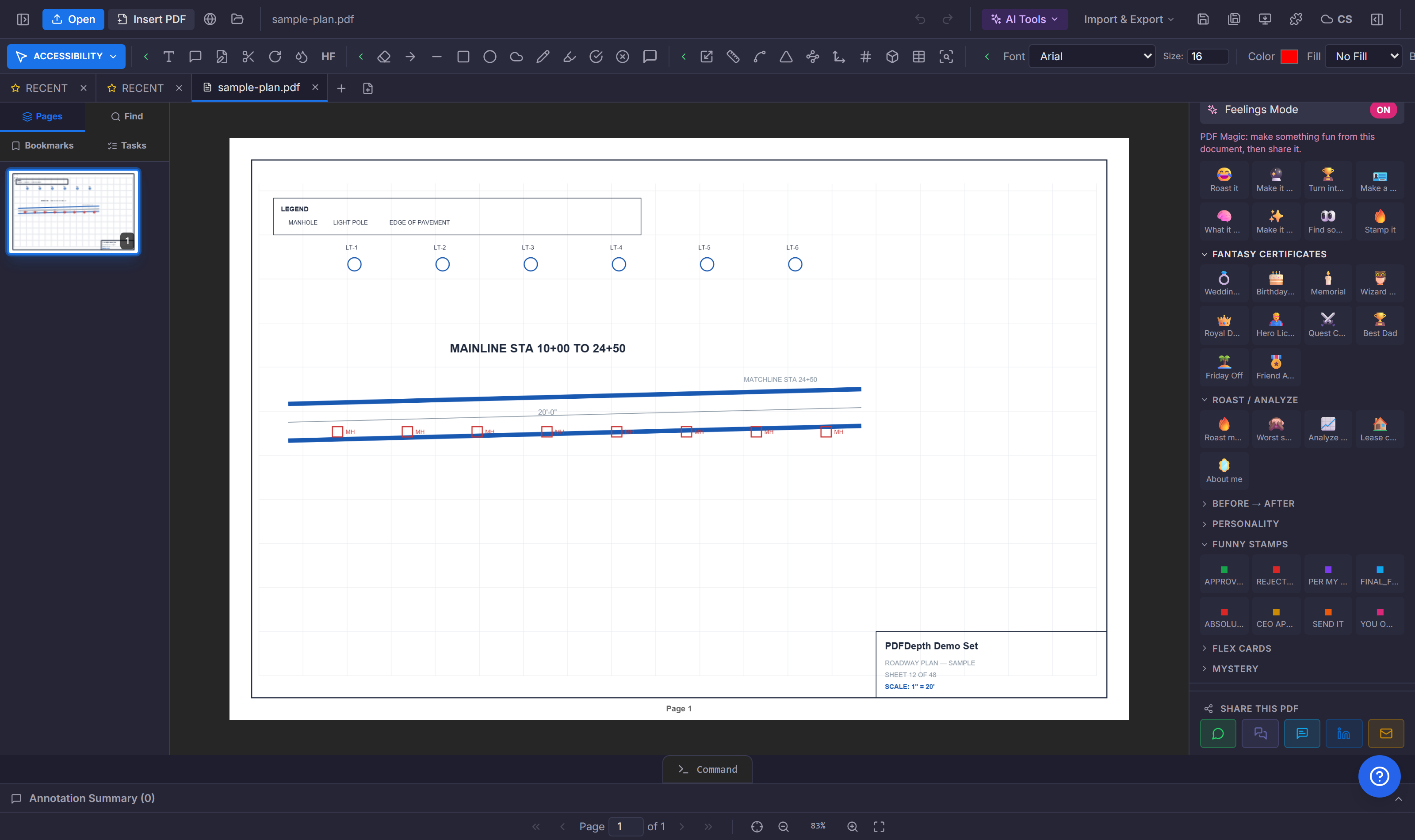
Placing a field
The Smart Forms button in the toolbar opens the field menu: text, checkbox, radio button, dropdown, date, signature, initials, file upload, number, and email. Pick one and the button arms — click the page to place the field at a sensible default size, or press Esc to cancel. Fields auto-number themselves ("Text 1", "Signature 2"), and radio buttons placed in one placement run share a group so only one can be selected.
Editing and filling on the page
Form Edit Mode (Ctrl+F10) renders the fields as live controls on the sheet — text, date, number, and email boxes you can type in, checkboxes and radios that toggle, and dropdowns that select. Each field carries a hover toolbar with a drag grip and a lock: drag to reposition, lock to pin it in place. The overlay also reads the PDF’s own AcroForm widgets, so existing fields show up and take values alongside the ones you add (read-only fields stay read-only).
What actually exports
On save or export, the placed fields are written as real AcroForm widgets — not drawn-on boxes. Checkboxes become checkbox fields, radios join a radio group with their options, and dropdowns carry their option list; the remaining types (date, signature, initials, number, email) export as text fields, and file-upload fields get file selection enabled. Whatever you filled in the editor is written into the widget values, so the recipient gets a working form with your answers in place.
Doing it in PDFDepth
Toolbar → Smart Forms → pick a type → click the page. Form Edit Mode is where fields drag, lock, and fill; the same field picker also sits inside Canvas Mode’s Create grid for designed forms. When the form already exists and just needs filling, AI Form Fill maps data onto the existing fields instead of placing new ones.
References
Everything in this article runs in the live PDFDepth workspace — the same app the workflows above were verified against.
Key takeaways
- Ten field types place by clicking — text, checkbox, radio, dropdown, date, signature, initials, file upload, number, email.
- Fields are draggable and lockable in Form Edit Mode (Ctrl+F10), and fillable right in the editor.
- Export writes real AcroForm widgets — the PDF stays fillable in any viewer.
- The overlay reads existing PDF form fields too, so you can fill what is already there.
Related questions
Yes — they export as standard AcroForm widgets, so any PDF viewer with form support can fill them.
Do it in PDFDepth
In the app: Toolbar → Smart Forms
Try it free — no signup, no upload
Related articles
Put it into practice
Everything above runs inside the PDFDepth workspace — free for 14 days, no credit card.
Start for Free