Inside the Workspace · Updated October 19, 2026
How do I design a bridge in Bridge Studio?
Short answer
Bridge Studio lives in the right panel of the Blueprint workspace (blueprintpdf.web.app). You fill a structured brief — project data, spans, roadway section, superstructure, vertical profile, and substructure — then press Design bridge. A deterministic layout engine resolves every dimension, runs FDOT SDG- and AASHTO-referenced checks, and drafts a real multi-sheet FDOT-format plan set (key sheet, plan & elevation, typical section, finish grade table, notes, pile data) as editable PDF geometry you can mark up, revise, and export to DXF.
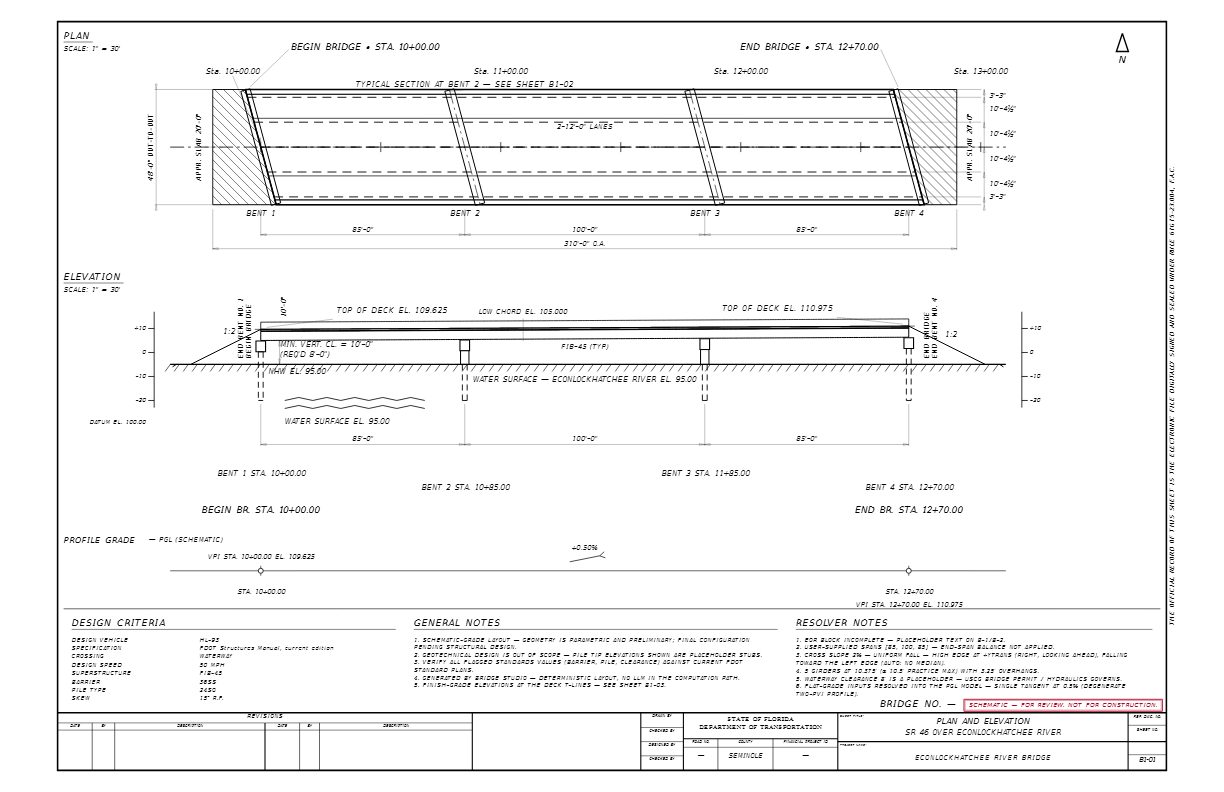
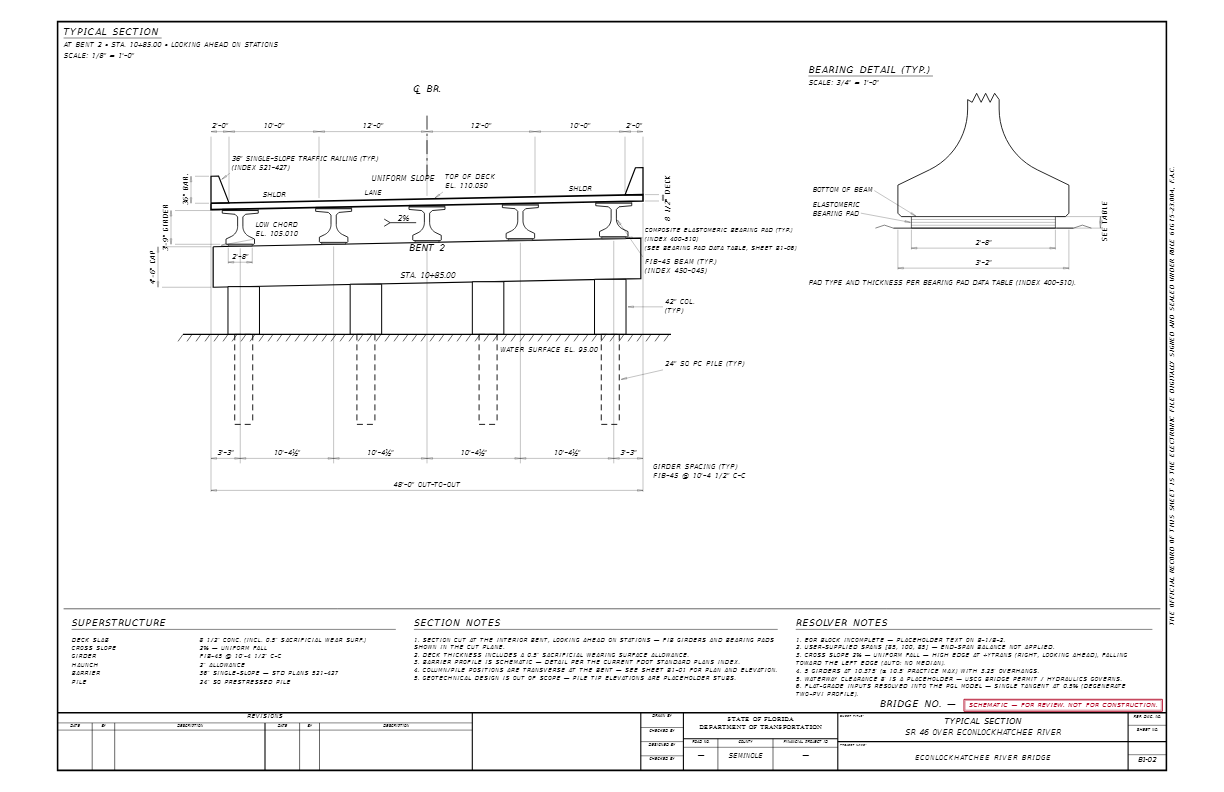
How it works: brief → resolved design → sheet set
Bridge Studio follows the same split as Plan Studio: you state intent, a deterministic engine does the arithmetic, and a human reviews before anything commits. Nothing is generated by an image model — every station, elevation, and dimension on the sheets is computed and independently checkable.
The workflow on blueprintpdf.web.app is three steps: (1) fill the brief in the right panel — the fields below; (2) Design bridge resolves the design and shows a rendered preview plus a check ledger (each check carries its rule reference, e.g. FDOT SDG 1.12 for vertical clearance, AASHTO 2.5.2.6.3 for minimum depth); (3) create the plan set — a new tab of drafted FDOT-format sheets you can mark up, revise in plain English, and export to CAD. The example throughout is the panel's own demo brief: the Econlockhatchee River Bridge carrying SR 46.
Project — the title-block data
- Project name — the structure's name as it appears on every sheet's title block ("Econlockhatchee River Bridge").
- Facility carried — what travels over the bridge ("SR 46"); it drives the roadway section and the "SR 46 OVER ECONLOCKHATCHEE RIVER" sheet captions.
- Feature crossed — what the bridge crosses ("Econlockhatchee River"); shown on the elevation view and title block.
- Crossing kind — roadway, waterway, railroad, or trail; sets the governing vertical-clearance rule (FDOT SDG 1.12 for roadway, USCG/permit basis for waterway) the checks enforce.
- Contract data (expandable) — bridge no., contract no., financial project ID, county, state road no., project limits, FDOT project manager, engineer-of-record block, and the FDOT SDM environmental classification for superstructure, substructure, and steel — everything the FDOT key sheet and signature blocks need.
Spans — where the bents go
- Explicit list — type the span lengths yourself ("85, 100, 85") when the crossing dictates bent locations.
- Auto-balance — give total structure length and a target span; the engine proposes a symmetric span arrangement, the way a designer balances spans against cost and FDOT practice.
- Span lengths (ft) — the per-span distances between support centerlines; the engine marks them user-supplied vs auto in the resolved summary.
- Begin station (ft) — the bridge's starting station on the alignment; all sheet stationing (begin/end bridge, bent stations) derives from it.
- End station (ft) — leave blank to derive (begin + total length); type a value only to force a specific end station.
Roadway — the cross-section the bridge carries
- Lanes — number of travel lanes; multiplies with lane width into the deck-width arithmetic the checks verify.
- Lane width (ft) — per-lane width (12' typical on state routes per FDOT practice).
- Shoulder left / right (ft) — the shoulder widths each side of the traveled way; feed clear-roadway and out-to-out width.
- Median (ft) — raised median width if the section is divided.
- Sidewalk (ft) — pedestrian width, added to the out-to-out section.
- Design speed (mph) — printed in the sheet's design criteria block; frames the geometry expectations a reviewer reads the plan against.
Superstructure — what spans the gap
- Barrier — the traffic-railing type at the deck edges ("36" Single-Slope", the standard FDOT Index 521-series profile shown on the typical section).
- Girder family — Florida I-Beam (FIB) prestressed girders or a cast-in-place flat slab.
- FIB section — pick a section (FIB-36/45/54/63/72/78) or Auto — smallest covering section, where the engine selects the lightest FIB whose span capability covers your longest span per FDOT practice.
- Girder spacing (ft) — center-to-center beam spacing; blank = auto, the engine optimizes the count and spacing (shown "auto" in the summary), and the checks cap it at FDOT practice limits.
Vertical & skew — the profile geometry
- Vertical PVIs — "sta,elev[,curve L]; …" points describing the profile grade line; curve length applies at interior points only, and entering PVIs overrides the flat-grade inputs.
- Profile grade (%) — constant slope used when no PVIs are given (blank = flat).
- Low chord el. (ft) — bottom-of-superstructure elevation; the clearance check measures from here down to the obstacle.
- Obstacle el. (ft) — the feature below (e.g., the Econlockhatchee's water-surface elevation); low chord minus obstacle is the vertical clearance FDOT SDG 1.12 governs.
- Skew (deg) — bent-line skew angle; bents, piles, and dimensioning are laid out along the skewed lines, and large skews get flagged.
- FG table interval (ft) — station spacing for the finish-grade elevation table on sheet B1-03 — the same table format FDOT structure plans carry.
Substructure — what holds it up
- Interior bents — pile bent or multi-column; determines the intermediate support form drawn in plan, elevation, and section.
- Pile type — the foundation pile ("24" SQ PRESTRESSED PILE" in the demo; 18" square and 54" cylinder options exist) — drives the pile data table and foundation layout.
- Sheet pile wall — none, or a wall type (cantilever, dead-man anchors, prestressed soil anchors) sized from FDOT data tables.
- Approach slab (ft) — the FDOT standard approach-slab length at each end bent, drawn in plan and profile.
What "Design bridge" actually computes
One click resolves the whole structure: station limits, deck and clear-roadway widths, span arrangement, girder section and spacing, bent stations, profile elevations at 1-ft resolution, and the governing vertical clearance — then runs the check ledger. Each check is pass/fail/note with its rule reference: FDOT SDG 1.12 vertical clearance (evaluated at every bent and along the continuous profile, not just at support points), AASHTO 2.5.2.6.3 minimum superstructure depth, FIB section span limits, girder spacing and overhang practice, deck-width arithmetic, and station monotonicity.
The resolved summary shows exactly what the engine decided versus what you supplied — spans tagged "(auto)", a girder spacing tagged "(auto)", the governing clearance vs required — plus honest notes about what it deliberately did not decide.
The sheet set it drafts
Create the plan set and Bridge Studio drafts a real FDOT-format structures plan set as a new tab: the B-1 key sheet (state-map location, index of structure plans, governing design standards, FDOT SDM environmental classification, engineer-of-record block), B1-01 plan & elevation (plan view with bents and span dimensions, elevation with low chord, water surface, profile grade schematic, design criteria, and general notes), B1-02 typical section (deck build-up, 36" single-slope railing, girder spacing and bearing detail, pile layout), a finish-grade elevation table per the FG interval, general notes, pile data table, foundation layout, and a temporary-bracing table scoped per SDG 11.6.
Every sheet carries the FDOT sheet numbering convention, a title block naming the facility and feature ("SR 46 OVER ECONLOCKHATCHEE RIVER"), and a red "SCHEMATIC — FOR REVIEW, NOT FOR CONSTRUCTION" stamp — because that's what it is. Everything is native PDF annotations at calibrated scale: measurable, markable, and exportable.
Revisions, station callouts, and CAD
Revise in plain English — "move bent 2 five feet downstream" — and the same split applies: AI parses intent, the deterministic engine re-solves, and you get a before/after preview with the check delta. Nothing commits without Accept; revision numbers bump on the title block like a real set.
The STA tool reads station back off the drafted views — click inside the plan, elevation, or profile and it reports the station (and elevation where the view carries one) using the per-sheet view transforms stored on the tab. Export DXF writes real-unit linework on named layers for further detailing in CAD.
What it's worth — and what it's not
The value is the first 80% of a schematic bridge plan: the FDOT-format sheets, the tables, the notes, the checks — work that is tedious to draft and painful to re-draft on every alignment change. On blueprintpdf.web.app it runs in the same tab where you mark up and measure the result, so the plan set is a working document, not a picture.
The limits are printed on the sheets themselves: schematic-grade geometry, geotechnical design and hydraulics out of scope (pile tip elevations are placeholders pending borings), FDOT data tables modeled with EOR-pending cells, and every SDG- and AASHTO-referenced check marked as the practice approximation it is. A licensed engineer of record still designs and seals — Bridge Studio gets you to a reviewable draft fast.
| Right-panel section | Key inputs | What it controls on the sheets |
|---|---|---|
| Project | Name, facility carried, feature crossed, crossing kind, contract data | Title block, key sheet, captions, environmental classification |
| Spans | Explicit/auto-balance, span lengths, begin/end station | Plan view layout, bent stations, bridge limits |
| Roadway | Lanes, widths, shoulders, median, sidewalk, design speed | Deck out-to-out, clear roadway, design criteria block |
| Superstructure | Barrier, girder family, FIB section, spacing | Typical section, elevation girder callouts, deck build-up |
| Vertical & skew | PVIs, grade, low chord, obstacle, skew, FG interval | Profile grade, clearance checks, finish-grade table |
| Substructure | Bent type, pile type, sheet pile wall, approach slab | Foundation layout, pile data table, section substructure |
References
Everything in this article runs in the live PDFDepth workspace — the same app the workflows above were verified against.
Key takeaways
- Bridge Studio runs in the right panel at blueprintpdf.web.app: structured brief → deterministic design resolve with rule-referenced checks → drafted FDOT-format sheet set.
- Every input is one field with a clear job — project/title data, spans, roadway section, superstructure, vertical profile and skew, substructure — and "auto" fields show what the engine decided.
- Checks cite their basis: FDOT SDG 1.12 clearance, AASHTO 2.5.2.6.3 depth, FDOT practice for FIB spans and girder spacing — visible per check, not a black-box score.
- Output is a real FDOT-convention plan set (key sheet, plan & elevation, typical section, finish-grade table, pile data, notes) drawn as editable, exportable PDF annotations.
- It is deliberately stamped schematic — geotech, hydraulics, and final EOR design stay with the engineer; the tool produces the reviewable draft and the re-draft loop.
Related questions
In the right panel of the Blueprint workspace at blueprintpdf.web.app — open the app and switch to the Bridge Studio panel. Fill the brief and press Design bridge.
Do it in PDFDepth
In the app: Right panel → Bridge Studio
Try it free — no signup, no upload
Related articles
Put it into practice
Everything above runs inside the PDFDepth workspace — free for 14 days, no credit card.
Start for Free